
MFA Re-registration
(1) MFA Re-registration (when purchasing a new device and registering MFA again)
--> Go to the Re-registration page using the following URL:
https://auth-mfa.auth.osaka-u.ac.jp/AttributeRegistSite/MfaInfoServlet
After logging in using your previously authenticated device (smartphone, Tablets, etc.), click "Go to MFA registration."
※If you use a mobile phone company's purchase service or disposal service and do not have your previously authenticated device, this process will not be possible. In this case, please use the temporary release code or log in from on-campus.
※The following services is also on-campus network. Please check the website for an overview.
Wi-Fi service provided by The University of Osaka
(You can re-register MFA at the following website link.)
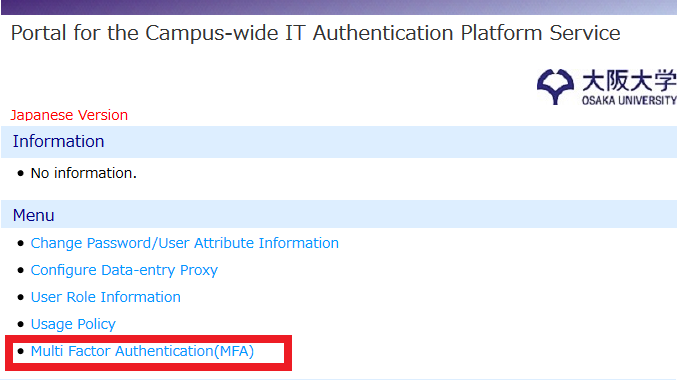
--> If you don't have your previously authenticated device, first complete an MFA Temporary release, then go to the MFA Re-registration screen from the above URL.
If you do not have your previously authenticated device and have forgotten the temporary release code, you can register a new smartphone by accessing the above re-registration URL using the on-campus university network. Or you need to take procedure to reset MFA shown below.
 Smartphone
1) Install the free app: "Microsoft Authenticator"(*Microsoft Corporation Products) in advance.
※You will never be asked to pay a fee.
2) Tap "Add account" in the Microsoft Authenticator app (or tap "+" or "..." button in the upper right corner, and if you already have an "osaka-u personal ID" account, please delete it).
3) Tap the account (Google, Facebook, etc) , the camera will start.
 PC
PC
4) Log in to the re-registration URL using the temporary release code or log in from on-campus network.
5) Scan the QR code displayed at the MFA registration page.
6) Enter the 6-digit code displayed in the app in the "Authentication code (for confirmation)" box and click "Check." (It is not yet completed just clicking "check" button. Make sure to proceed 7) below.)
7) Register a numerical passcode created by yourself in "Temporary release code". Please re-type the code in "Temporary release code (again)" areas and click "Confirm".
8) MFA registration is completed. Please close your browser.
(2) When you forget to register MFA within the pre-registration period
If you have not registered the MFA within the pre-registration period, the following screen will be displayed.
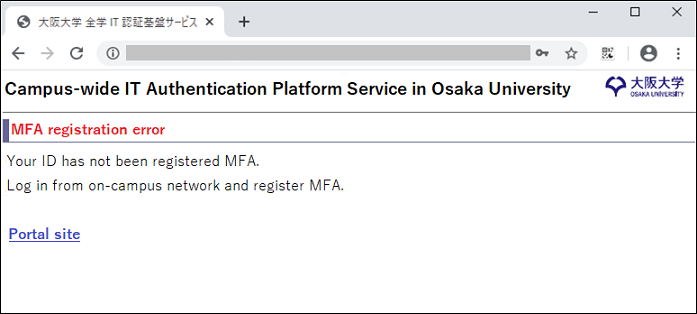
--> You can register a new smartphone by accessing the above re-registration URL using the on-campus university network. Or you need to take procedure to reset MFA shown below.
(3) MFA Reset
You can reset MFA registration by online application, fax, or in-house mail. For security reasons, your password will also be reissued at the same time as the MFA reset. Once your reset request has been approved and your password has been reissued, the notification of your personal ID(including new password) will be sent to the administrative office of your affiliated department. Please collect it there. Please note that the Notification will arrive at your department's administrative office no earlier than the next business day after your reset request has been approved. If you need to regain access urgently, please complete the procedure at one of the Password Reissue Service Counters on campus.
For information on how to submit an MFA reset request and the locations of the Password Reissue Service Counters, please refer to this page.