
More Info
Browser Add-on(extention) Settings at Multiple Locations
If you do not have a portable device(smartphone,tablet,etc.) and wish to register with the browser add-on at multiple locations on your PC, you can follow the steps below.
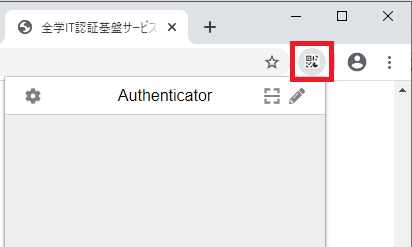
First, complete your MFA registration using the web browser add-on at any one location. Please refer to the following MFA registration instructions (2.Other methods section)MFA registration Once the registration is complete, the Authenticator tool will appear in the top right corner of your web browser screen. Launch the tool and click on the gear symbol.
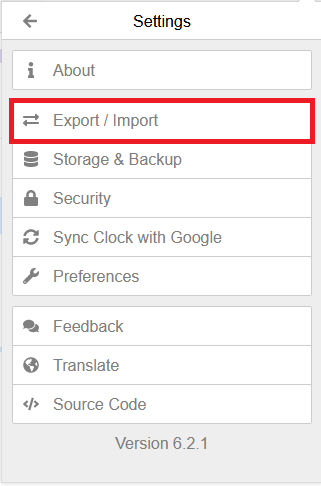
Click "Export/Import" on the configuration screen.
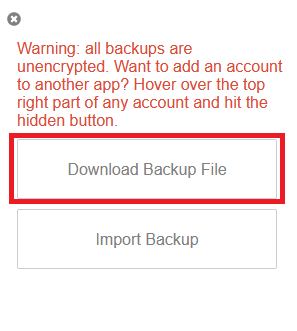
Click "Download Backup File".
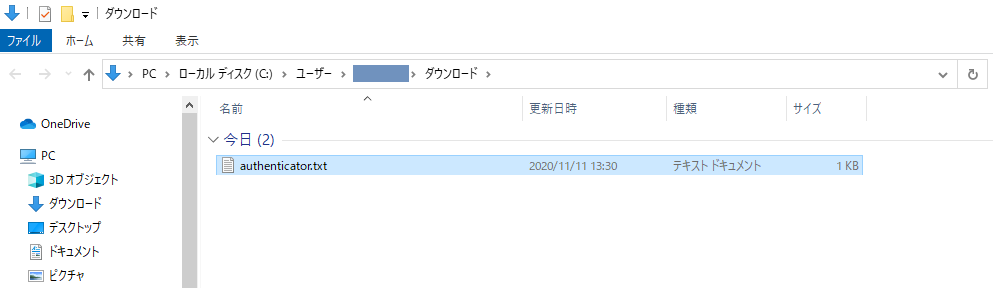
Your backup data will be downloaded. Usually, it is downloaded in the "Downloads" folder. Depending on your browser settings, the download data may be saved in different locations.
Move the backup file to another PC. (You can move the file to any USB memory stick or any other data transfer method, but please delete the backup file after all the following import operations are completed.)
Install the add-on to the web browser you want to use on the PC at another location. Please refer to the following MFA registration instructions (2.Other methods section)MFA registration After installing the add-on, the Authenticator tool will appear in the upper right corner of your web browser screen. Launch the tool and click on the gear symbol.
Click "Export/Import" on the configuration screen.
Click "Import Backup".
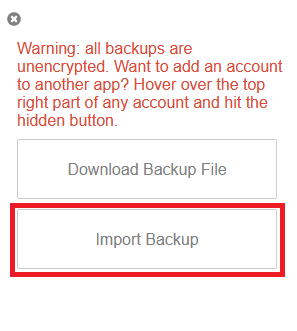
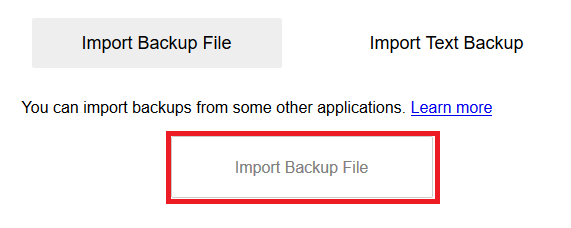
A screen for importing the backup file is displayed, click "Import Backup File".
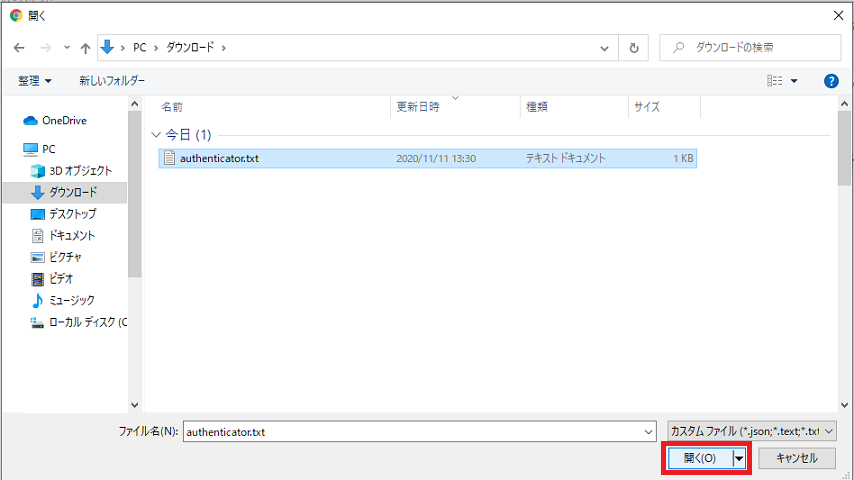
Select the backup file you just moved to your PC and click Open.
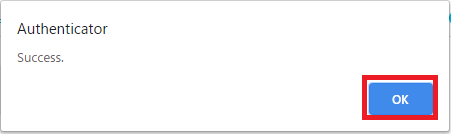
If the import is performed successfully, the following message will be displayed
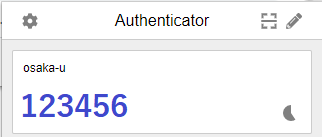
Click on the Authenticator tool in the top right corner of your web browser screen and you will see a 6-digit authentication code.
Finally, for security reasons, please delete the backup file saved on your PC, USB or other storage device.