
MFA Registration
1.Mobile application authentication (recommended)2. Other methods (for those without a smartphone,tablet or similar devices)
1.Mobile application authentication (recommended)
※Attention※ For those already using the Microsoft Authenticator appIf you are already using the Microsoft Authenticator app to access services such as ICHO or OUMail, due to increased security, you will also need to register again separately to access other SSO Systems (My Handai, KOAN, CLE, etc.). With this separate registration for the other services, a 6-digit code will be required to be entered each time, instead of simply pressing OK, for authentication.
--> You will need a smartphone and a PC.
* The clock on the device(smartphone or PC)is related to MFA registration. If the clock is off, please adjust it. If you fail MFA registration, check time and date setting of your smartphone. Please check Set automatically. Evenif the setting is on, please check it off and check it on again, and restart your smartphone.
 Smartphone
--> In the App Store or Google Play, search for and install the free app: "Microsoft Authenticator."(*Microsoft Corporation Products)
※Please note that some similar applications may require you to pay a fee.

--> When installation is completed, start the app.
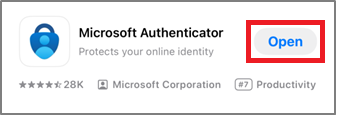
--> To continue the authentication process, open your PC web browser.
 PC
PC
--> Log in to the SSO System (e.g. My Handai, KOAN, etc.) using your web browser and your Osaka University Personal ID and password.
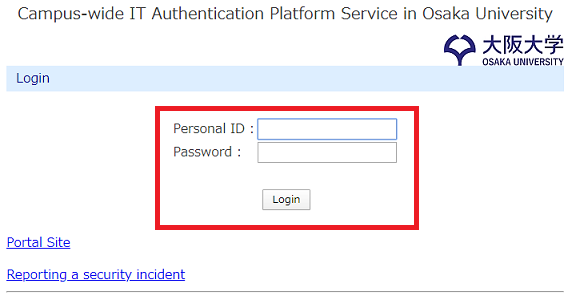
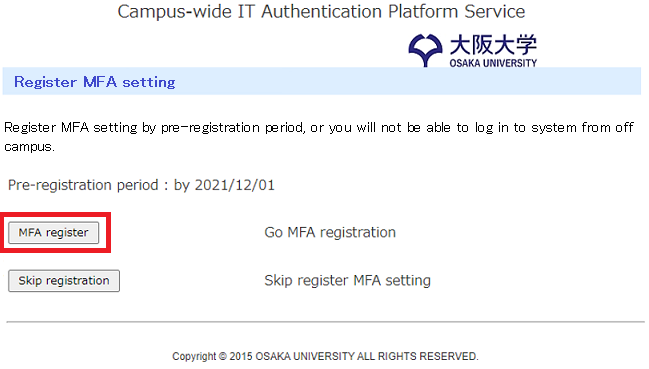
--> You will see a new page requiring MFA registration. Click "MFA registration" (If you are in a hurry, you can log in to the SSO system by clicking "Skip registration.").
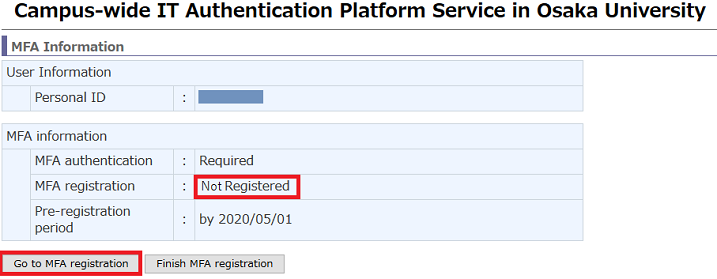
--> Click Go to MFA registration (A QR code will be displayed.).
--> Go back to your smartphone.
Smartphone
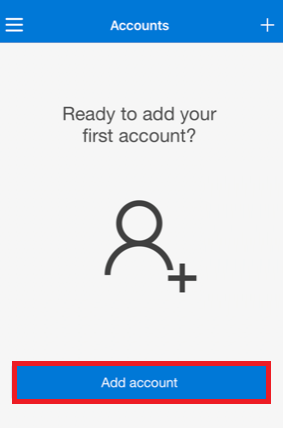
--> Tap "Add account" in the Microsoft Authenticator app (depending on the device, this may be displayed by sliding instead of tapping). ※If you are already using Microsoft Authenticator, tap the "..." or "+" button in the upper right corner to access settings, then tap "Add account.".
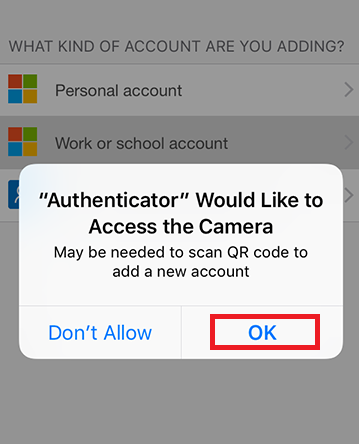
--> When asked "What kind of account are you adding?", tap "Other (Google, Facebook, etc.)".

--> When the following warning is displayed, tap "OK." Your QR code reader will start automatically (note: your camera may be activated without displaying this warning).
PC
--> Scan the QR code displayed at the MFA registration (If you can't scan it, enter the code and URL manually).
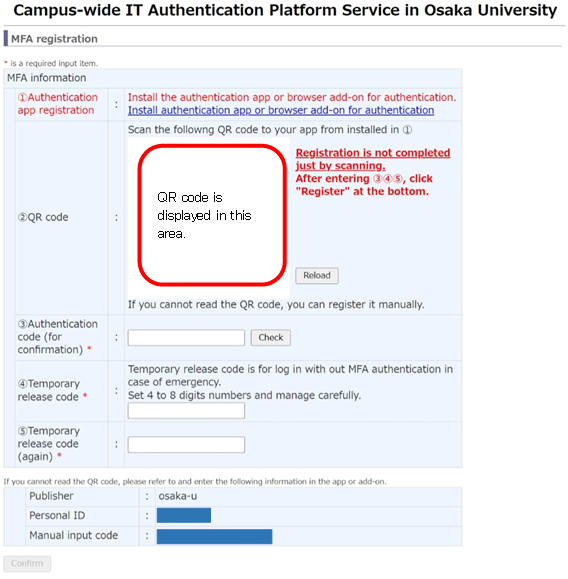
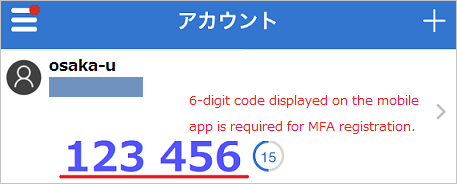
--> Enter the 6-digit code displayed in the app in the "Authentication code (for confirmation)" box and click "Check."(*If authentication is successful, "Authentication succeeded" is displayed.)

(Sample:6-digit code screen of smartphone or tablet device↓)
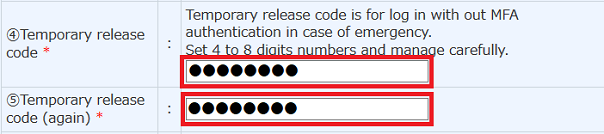
--> Register a numerical passcode the in "Temporary release code" and "Temporary release code (again)" areas and click "Confirm.". *Do not forget this temporary release code. It is required in an emergency. MFA Temporary release
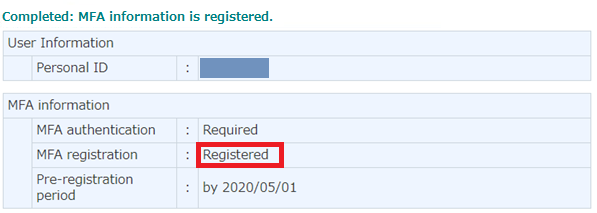
--> MFA registration is complete. Please close your browser.
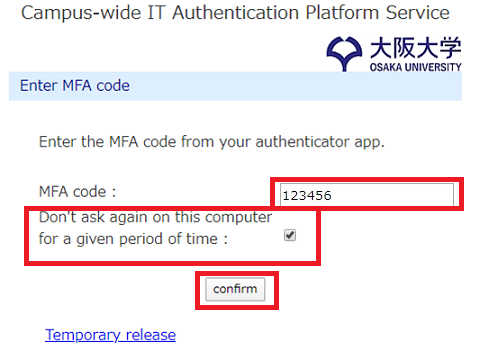
--> After the MFA registration, when logging in to the SSO System, the "Enter MFA Code" page will be displayed. Enter the 6-digit code shown on the authentication app and click "Confirm." If you check "Don't ask again on this computer for a given period of time," you will not be required to enter the authentication code when logging in with the same computer and browser for the next 30 days.
2. Other methods (for those without a smartphone,tablet or similar devices)
--> Browser add-ons(extensions) can also be used for MFA.
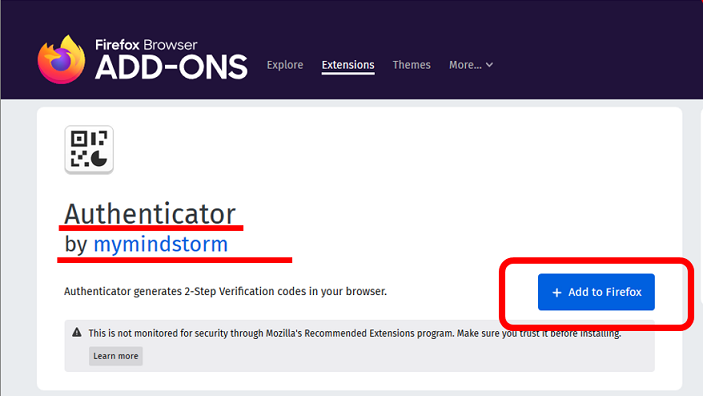
--> You can find many add-ons(extensions) by searching "Authenticator" in the Firefox add-ons or Chrome extension settings. Please add one of the following below. In this case, when accessing from off-campus, you need to take your PC which you used for MFA registration. If you do not have a portable device(smartphone,tablet,laptop,etc.) and wish to register MFA with the browser add-on(extension) at multiple locations, please refer to the More Info page
 Firefox add-ons https://addons.mozilla.org/en-US/firefox/
 Google Chrome extensions https://chrome.google.com/webstore/
 Microsoft Edge extensions https://microsoftedge.microsoft.com/
--> Go to Microsoft Homepage and Search for "Authenticator" (using the search button in the top left) and add it to Edge.※If the Microsoft website requires you to sign in, click close. No sign-in required.


 ※QR codes may not always be read using old Edge(icon blue only). Please use new edge(icon blue & green) if possible. you can get new edge here
Installing browser extensions
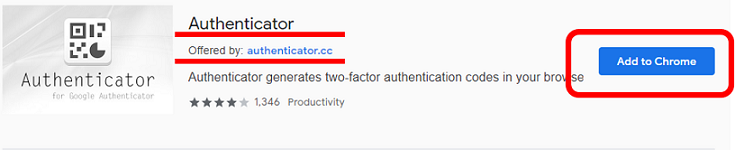
--> The following example is for Google Chrome. Search for "Authenticator" in the Chrome web store and add it to your browser.

--> Follow the initial steps in the smartphone´s registration procedure (1. Mobile application authentication…) to receive your QR code.

--> On the QR code display screen, the Authenticator tool is displayed in the upper right of the browser. Click this to launch the tool.
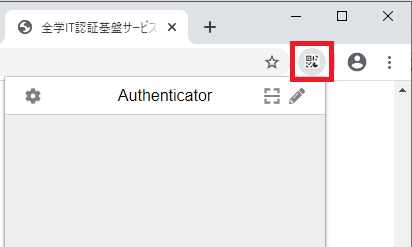
--> Press the scan button.

--> Scan the QR code by dragging the mouse over the QR code.

--> Once registered, a 6-digit code will be displayed.

--> Use the 6-digit code displayed to proceed with registration (The 6-digit code can be copied by clicking it.). Complete the registration in the same manner as the final smartphone procedures.
--> Enter the 6-digit code displayed in the app in the "Authentication code (for confirmation)" box and click "Check."(*If authentication is successful, "Authentication succeeded" is displayed.)
--> Register a numerical passcode the in "Temporary release code" and "Temporary release code (again)" areas and click "Confirm.". *Do not forget this temporary release code. It is required in an emergency. MFA Temporary release
--> MFA registration is complete. Please close your browser.
--> After the MFA registration, when logging in to the SSO System, the "Enter MFA Code" page will be displayed. Enter the 6-digit code shown on the authentication app and click "Confirm." If you check "Don't ask again on this computer for a given period of time," you will not be required to enter the authentication code when logging in with the same computer and browser for the next 30 days.